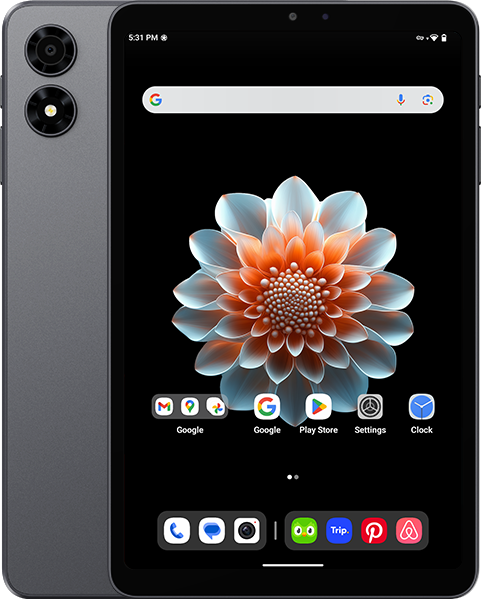
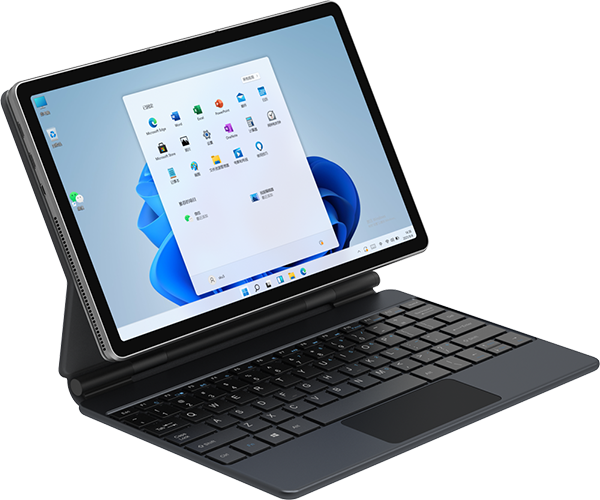
@ShSnow a huge Thank you to you for Posting. I was able to flash Android 15 last night successfully, but not without frustration, and several attempts.
I followed all the instruction that are on the following link just like ShSnow did and got an identical result, of boot loop. Link: https://androidmtk.com/install-xml-scatter-firmware-mediatek
Then I came here and saw that ShSnow did it successfully with SP MDT Tool which I saw mentioned at the bottom of one of the pages. So I downloaded that. The first attempt errored but the second one worked. I have to say this tablet looks even more beautiful with Android 15 so it was worth it. Here are the steps that I followed.
1. Disconnect your tablet from the cable and turn it off, by long pressing the power button and then selecting Turn Off. If your tablet is boolooping that is also OK.
2. Download and install the driver that is mentioned in the link above.
3. Download the latest Android 15 rar file. Windows was not able to unpack this rar so I had to install a tool called 7zip which is open source and free. Unzip the contents into a directory on your drive.
4. Download SP MDT Tool, which is just a zip file. Unpack into a directory. In the main directory you will see a single executable called mdt.exe
5. Google the auth_sv5.auth file mentioned in the link above and download it. I downloaded mine from this link: https://sourceforge.net/projects/gsi-rom-rmx1941/files/extract%2520fimware%2520C57/RMX1941C57/auth_sv5.auth/download&ved=2ahUKEwjEhaKLnOOPAxWpQfEDHZyXLmsQFnoECCMQAQ&usg=AOvVaw0pMoDBWn4nIO3KJGKtZBjK
6. Plug the USB cable into your computer, but not into the tablet yet.
7. Start the SP MDT Tool . I did not find any instructions on how to use it, so I winged it a little bit. But in the end it worked.
8. Navigate the Flash XML field to the directory where you unpacked your rar. The url should end with /download_agent/flash.xml
9. In the Auth File navigate the downloaded Auth File.
10. Now plug your table into your computer.
11. Press Start All button.
If you press any other buttons the flash might fail, so you’ll have to try again. I did select Auto Reboot After Download other than that, this is it. Good Luck
 .
.