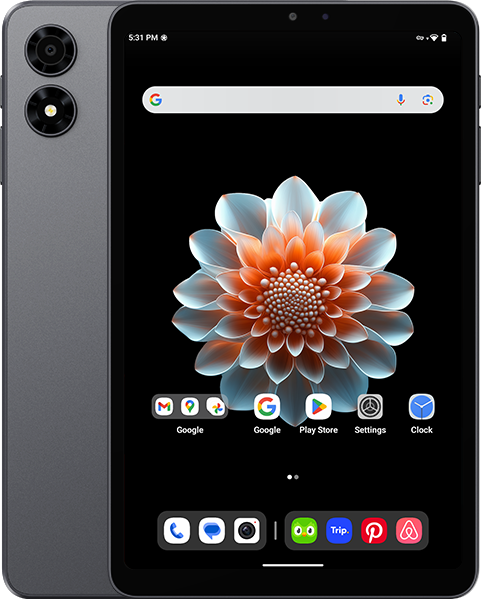
Some newer Android devices(phones/tablets) come with USB connection set to default as “charging only – no data”. Probably a security measure, but basically when you plug-in a USB cable to this kind of Android device and connect it to your PC/MAC, TV, another mobile device, external storage disk, or in this case a drone remote, the USB port defaults to “charge-only” state.
But for your tablet to work properly with the drone remote – a full “data-transfer” handshake need to be established. Same goes if you want to connect your tablet to a PC in order to transfer files to and from, like the pictures you took on your tablet, and you want to transfer them to your PC. You need to establish full “data transfer” connection.
To do that, normally after you connect cable between tablet and PC, have to go to “USB connections” option on your Android device(by pulling down notification menu on your tablet), which normally will show you 3 options:
1. No data transfer – charge only
2. File transfer/Android Auto
3. Transfer photos (PTP)
Some tablets like Lenovo have additional options like:
USB Thethering
MIDI
Smart Connect
Anyway, you need to pick “File transfer” option to establish full “data transfer connection” between your Android device and PC or a drone remote.
However, doing this everytime is tedious, also connections sometimes brake.
So, if you want to make sure that whenever you plug-in your tablet to your drone remote or a PC – and you always want to get “data-transfer connection” by default – you need to set this on your tablet. Some tablets like Lenovo have this settings menu in their “Settings” app. But as far as I know, AllDoCube iPlay Mini tablets don’t.
STEP 1: So you have to go to the “developers options” to make those changes.
To do that, you have to go to:
“Settings app” > System or About device > “Build number” or “OS version” – and tap on “Build number”/”OS version” 7 times.
Like in this video:
https://www.youtube.com/watch?v=zu9oCE9N8H0
Once you are in the “Developer options” menu (usually somewhere under “additional settings” in the “Main Settings app”, there will be a setting:
“USB default connections” or “Default USB configuration”, go there and most likely the default is set to “no data transfer”, so change it to “File transfer”.
STEP 2: In the developer options, You also have to turn on these two things:
“USB Debugging”
“USB Debugging(Security settings)” – if available.
This helps with USB OTG connection between drone remote and DJI Fly app.
Setting the above options, should make “data transfer” as a default connection when you connect your tablet to your drone remote, and hopefully this fixes your issue.
And you no longer need to pull down notifications menu to select USB connection method..
Please try this, and let me know, because I would also like to buy iplay 60 mini pro for my DJI remote.
 .
.